Quote of the Month

When love and skill work together, expect a miracle. John Ruskin


Showing posts with label sharing. Show all posts

Wednesday, June 12, 2013

Saving And Sharing The Web---Quickly

As I have frequently in the past I look to the "best" lists for new web 2.0 applications to explore each week.  In his The Best Web 2.0 Applications for Education in 2012 educator and blogger at Larry Ferlazzo's Websites of the Day..., Larry Ferlazzo lists a service for organizing, saving and sharing information discovered on the Internet.  This service could be compared to Dragdis (and other similar applications listed in that review).

Quicklinkr can be used without registration and is free.  There are no Terms of Service guidelines only a Privacy Policy.  When accessing the home page on the left is a column of choices. Each are self-explanatory.  The Tumblr provides you with updates to the service and suggestions for use.

Quicklinkr allows you to collect all types of information, websites, links, images, podcasts, and videos, on any device.  It is billed as being easy peasey, lemon squeezy.  I began by selecting the pink Get Started button in the center of the initial page.

A window pops up advising you cookies are used and asks you to review the Privacy Policy.  If you are satisfied click the Yes, Get Started Already! button.  On a new screen your initial Quickboard appears.  Anything with a URL can be added to your Quickboard.

On the left side you can choose to register this Quickboard and your folders are listed.  The first open (default) folder is Public.  At the top are two new small icons.  The first (on the left) allows you to change your grid size from small to medium to large.  The second provides for adding, renaming and deleting folders.  Registration is required for completing these actions.


To the far right of these icons is the space for adding a URL to create Quicklinks.  Beneath these choices a temporary URL link has been generated for this Quickboard.  As many Quicklinks as desired can be added.  For the purposes of making sub-folders, changing the Quickboard to private or making a custom URL, again, registration is necessary.


When clicking on the small down arrow located at the end of the temporary URL link, a drop down menu lists the options for sharing your Quickboard.  To add a Quicklink copy and paste or type in a URL, then click the Quicklink button. A thumbnail, snapshot, of the website will be visible in the grid.
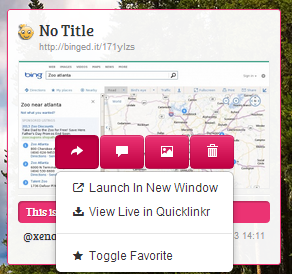

When you mouse over the snapshot four small pink buttons are visible allowing for sharing of the individual Quicklink, adding a comment, changing the image (they will search for another one or you can add a URL link) or deleting the link.  You have to be registered to leave comments.  To register provide your first and last name, email address, a password and username.  A validation email will be sent with a code to enter in at the Quicklinkr website.  Once registered the Quicklinks can be ordered on the grid by date added, last viewed and most viewed. (The image on the right shows how this link can be shared.)


If registered, upon logging in you are taken to your profile page.  On the left you can toggle between home, user settings, logging out and noting folders.  The user settings are general settings (to stay logged in, allow anyone to add Quicklinks to your board and allow registered users to comment), profile (changing password), appearance (12 different wallpapers for the page) and tools (adding a bookmarklet to your browser toolbar for Quicklinkr).


With the American Library Association annual convention coming at the end of the month with the awards banquet, I decided to create a Quicklinkr to celebrate The One and Only Ivan by Katherine Applegate, the Newbery Medal winner for 2013.  Here is a snapshot of that grid and this is the link.


Quicklinkr is everything they claim to be and more.  My post is late this morning because I could not stop looking for items to add to my Quickboard; it's that easy to use.  Being able to create a board without registering would make this great for students under the age of 13 to incorporate into research.  All they would have to do is save the original URL link.  This application is definitely going into my virtual toolbox.  One more thing to note is the prompt response to email; it's fast and friendly.

Wednesday, April 24, 2013

Simply The Simplest--Saving The Web

Each week new services appear to make curating and saving the content on the Internet more efficient, pleasing to view, and simple to manage. Toward the end of last month, Heather Moorefield-Lang, Education and Applied Social Sciences Librarian at Virginia Tech and former chair of the American Association of School Librarians Best Websites for Teaching and Learning committee mentioned a new web 2.0 app on Twitter that is a bit different from other similar applications such as Symbaloo, Bundlenut, WebList and Urlist.  Dragdis (dragdis) proclaims to be the simplest way to collect the web.

Still in private beta, you need to enter in your email address at the main site to receive an invitation prior to use.  My request was answered within twenty-four hours via email with a link to register.  To register provide an email address and password.

When registration is complete, a new window appears on your screen asking you to install the browser extension (Chrome, Firefox or Safari) to allow the drag and drop method for collecting web content. (It will show up as a tiny icon at the end of your URL line at the browser top.) When the extension has been added another window automatically pops up offering a short tutorial on using dragdis.  All you have to do is drag an item to the right of your screen; a menu slides out with options.


Initially at the top are three pre-named folders in which to place items.  The other three items give you a chance to practice moving and manipulating them from position to position by dragging.  I moved all of these to the trash at the bottom of the column adding my own.  If you make a mistake in naming a folder, open the folder, click again and edit.

Items remain in the trash until you empty it.  All you have to do is select Trash.  Your items there will appear on your dashboard and the word Trash changes to Empty Trash.


I began by going to author/illustrator Matthew Cordell's website.  To save a website move your mouse to the tiny notebook paper like icon preceding the name of the website. Click and drag it to the right.

When you move that icon to the right of your screen the toolbar listing all your folders becomes visible. When you add it to a folder, the words Click to tag or share pop up. Click on those to bring up another work space.  Here the site is named, you have the opportunity to add tags and notes (1), your item is assigned a unique URL (2) and you can share it via Facebook, Twitter or Google + (3)


To add a video from YouTube or Vimeo mouse over the video screen.  The small blue dragdis icon can now be seen in the upper left-hand corner.  Simply drag the symbol to the right.

When you do this, again the toolbar listing your folders will appear.  Once the item is added to a folder you can assign tags, write notes or share.  The adding of images is as simple as clicking on it and dragging it to the right.


If you wish to just save a portion of text from a site, highlight it, click and drag it to the right also.  Every time an item is included in your dragdis it becomes part of the screen at your home space.  If you want to locate a specific item, type the keywords into the search box above the folders and double click.  Then only those items will appear on the home space screen until you click on home again.


By clicking on the down arrow next to your email address, you can access a list of functions.
 The first takes you to the three browser extensions for downloading and the second is to change your password.  The about section explains the application, the terms of service, the privacy policy and how to contact the developers.  Users must be 13 years or older to use this site, no exceptions.

If you should have any questions or comments the feedback form is a good option.  When I used this I received a courteous reply within a few hours.


To view items you have saved, select them from an opened folder.  Videos can be viewed in your dragdis.  Websites are hyperlinked in your item. Click on the title to go directly to the saved page.  (You can choose the Source to go to the website, too.) Of course, images and text can be viewed from the dashboard within dragdis. To exit this screen click above the box.


Dragdis truly is the simplest means of saving web content. With a single step items are placed in folders for instant recall.  If you don't have a folder designated for your item, create a folder with a simple mouse click. This is an application I will be using on a daily basis.  (When you receive an invitation you too have the choice to issue an invite to five other people.)


Friday, July 20, 2012

Fruitful Friendship

Sometimes when you go to your local bookstore you have a list in hand, a very specific purpose.  Other times you make a beeline to the recent release shelves.  And sometimes you wander...until the title on a spine, a familiar author's or illustrator's name pops out or when a color combination on a cover catches your eye. 

At first all I saw on a narrow strip was Claudia Boldt--- Odd Dog---NorthSouth.  Intrigued by the title, I pulled it off the shelf and opened it up so I could see the full jacket display, front and back.  I was completely hooked by the illustrations, comical-shaped dogs, one using an apple as a bowling ball and the other in front of his doghouse looking backward, both framed, top and sides with a pattern of leaves among red and orange apples.

Opening the book a single shade from one of the apples brightly colors front and back endpapers.  Appearing next is the first title page; author's name, title, the larger dog imploring the smaller who is holding an apple, all on steely, greenish teal paper.  This is followed by a two-page print of an apple tree loaded with fruit, others lying on the fringes.

Across the next two pages is an illustration of a cluster of houses surrounded by apple trees focusing on a visual similar to the front cover; featuring the verso and again the title and author's name with the publisher.

Peanut was an odd dog.  
Unlike all the other dogs he did not
care for bones, but he loved apples.
His apple tree was his pride and joy.

Not only is that apple tree his pride and joy but it is his obsession; believing the neighboring dog, Milo covets his fruit.

Having worrisome dreams, nightmares, he awakens each morning counting his apples to make sure they are all there.  To his abject horror one morning he notices the most scrumptious specimen is about to fall on the other side of the fence...right into Milo's yard.  His frantic efforts to secure his treasure are for naught. 

Falling into a pit of despair, woefully fretting about Milo always getting the best, disaster strikes pitiful Peanut.  Oh yes, that juicy, red circle of gourmet delight falls with a resounding thud right into the center of the other dog's dish.  An unexpected response from his neighbor prompts Peanut to reevaluate his assumptions and priorities.

Boldt's unique color palette, earthy backgrounds with a dusty gray undertone, splashes of color, reds, golds, browns and teals, combine to present a warm and pleasing effect. Hints of humor abound, Milo appearing in his dreams wearing a bandit mask, carrying a sack loaded with apples, the series of vignettes featuring Peanut's attempts to get that big apple and the facial expressions on each of the pooches.  By combining layers of india inks, line drawings and color using Photoshop Boldt is able to recreate her original artistic expression of using screen printing and linocut. (There is more about her technique in the link below.)


With a minimum amount of text but visuals packed with energy and emotion, Claudia Boldt, winner of the Booktrust Best New Illustrator 2011 Award, gives readers in Odd Dog (NorthSouth) a canine creation on the value of sharing and the resulting friendship it may bring.  The Booktrust charity, based in the UK, states their mission as:

Booktrust inspires everyone to enjoy books, reading and writing and the lifelong benefits that they bring. Our aim is to build a literate, connected and creative society.

Enjoy the extra visuals of some of the book's pages below as provided at the Random House Children's Books website.


It's a given that students love dog books.  Without exception my teachers are always in need of fresh, new books featuring apples for fall and plant studies.  This book covers all those desires with the added bonus of fun-filled illustrations and a narrative voice with insightful lessons learned.

Below is an earlier trailer using names different from the final printing.