 Several months ago Richard Byrne of Free Technology for Teachers featured a mind-mapping tool, Coggle in a post on his blog. Coggle is a free web 2.0 application released in January of this year. There is no registration. You sign up using a Google account.
 Features noted on the home page include:
- real-time collaboration
- unlimited amount of images using a simple drag and drop method
- go into history mode to re-do previously made edits
- when collaborating you can see who did what and
- for visual thinkers branch colors can be changed easily.
If you have a Google account select the big green button and you are good to go. At the next screen click the green CREATE button.

 In the upper-right hand corner of your work space are four icons representing from left to right, collaborators, download, view history and chat. In the center of the screen, to begin choose the gray New Coggle space by mousing over it. An arrow (+ sign) on either side will appear. The arrows allow for the addition of branches in your mind map. Click and type in the title of your Coggle.
As you work helpful hints appear on the screen; keys to use to delete, undo, redo, etc. The entire working area screen can be moved by dragging so you can focus on a particular section. You can zoom in and out by using control + and control -. You can also select the question mark icon in the lower left-hand corner for more assistance.

A branch can be dragged to a desired position. A single click on a branch causes a color wheel to appear allowing for a change in shades. For each branch that is added a plus sign appears allowing for "a child to be added to the parent" branch. When you choose a branch name again, you are allowed to edit your text.
At any point you can choose the share (collaborators) icon to provide a link via Facebook or Twitter. This allows anyone to see the work on your Coggle. (Here is the link for my Coggle, Book A Day Challenge Summer 2013) You can also add in readers and writers with their email addresses.
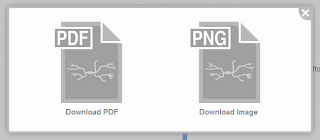 By choosing the download icon you can save your Coggle in PDF or PNG format. Any hyperlinks added to your Coggle will be functioning in the PDF format. Adding hyperlinks is easy. In the text box type the name of the link surrounded in brackets followed by the URL surrounded in parenthesis.
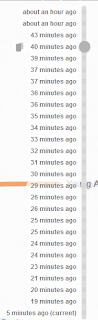
When you select the view history icon a list of times appear. Click on any to create a copy of your Coggle. This allows you edit your work from that particular point.
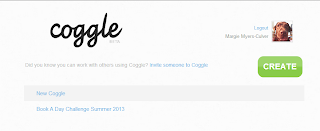 To exit your Coggle simply close the browser link. Your work in continuous saved. If you are logged in Google as soon as you go to the Coggle home page your account information (list of your Coggles) will appear.
For more help Coggle has a blog (linked here). The blog further explains specific features of the application. There are many how-to narratives offering more sophistication to the look of your Coggle.

A branch can be dragged to a desired position. A single click on a branch causes a color wheel to appear allowing for a change in shades. For each branch that is added a plus sign appears allowing for "a child to be added to the parent" branch. When you choose a branch name again, you are allowed to edit your text.
At any point you can choose the share (collaborators) icon to provide a link via Facebook or Twitter. This allows anyone to see the work on your Coggle. (Here is the link for my Coggle, Book A Day Challenge Summer 2013) You can also add in readers and writers with their email addresses.
 By choosing the download icon you can save your Coggle in PDF or PNG format. Any hyperlinks added to your Coggle will be functioning in the PDF format. Adding hyperlinks is easy. In the text box type the name of the link surrounded in brackets followed by the URL surrounded in parenthesis.
 When you select the view history icon a list of times appear. Click on any to create a copy of your Coggle. This allows you edit your work from that particular point.

 To exit your Coggle simply close the browser link. Your work in continuous saved. If you are logged in Google as soon as you go to the Coggle home page your account information (list of your Coggles) will appear.
For more help Coggle has a blog (linked here). The blog further explains specific features of the application. There are many how-to narratives offering more sophistication to the look of your Coggle.
When you desire to quickly collaborate, brainstorm, or make a list, this application is exactly what you need. I can't begin to stress enough the ease of use. I recommend putting Coggle in your virtual toolbox. You, your students and your colleagues are going to really enjoy using this mind-mapping web 2.0 application.
Here is the image of my Coggle.

Here is the embedded PDF file. I was able to embed the PDF file by uploading it into Scribd. In Scribd when you click on Preview one of the available options is HTML code.


